Settings
Open it: Settings · last item in the console menu.
Settings holds the platform’s setup, one section per item in Items. Sections marked Enterprise are part of A3T Enterprise Edition. Most are for SuperAdmins; organisation admins manage their own organisation here.
Organisations
Section titled “Organisations”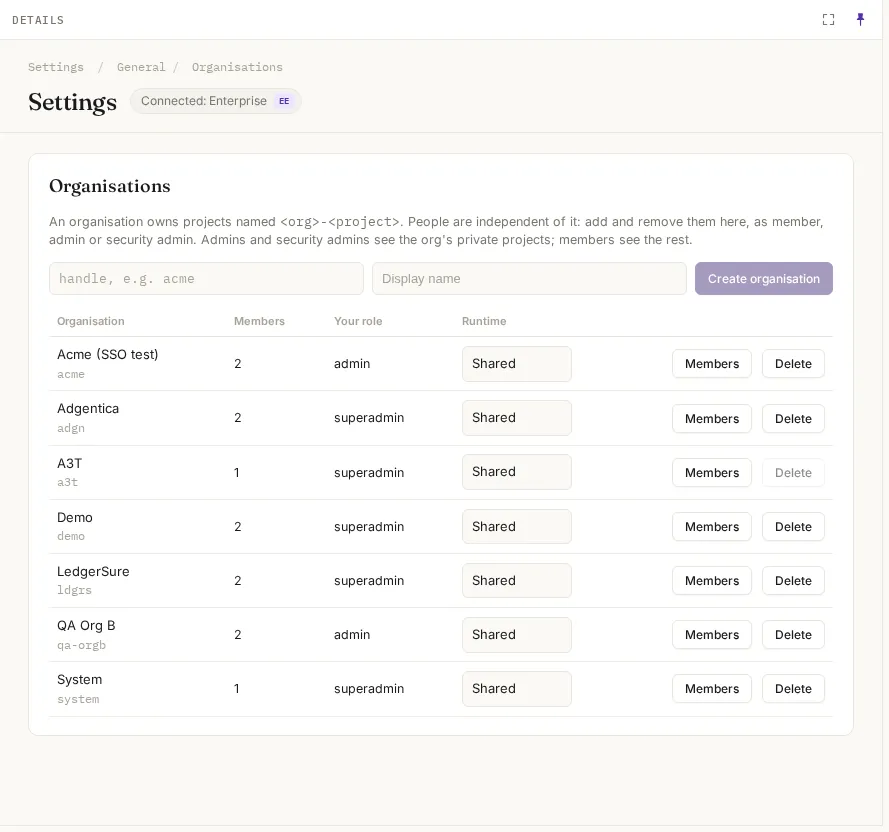
An organisation owns projects named <org>-<project>. People are independent of it: you add them to an organisation, as member, admin or security admin, and remove them, here.
| Organisation role | What they can do in its projects |
|---|---|
| admin | Change all of them, including private ones; manage the organisation’s members |
| security admin | Read all of them, including private ones |
| member | Read the ones that aren’t private; create projects in the organisation |
Each row shows its members, your role in it, and Runtime: Shared (its projects run on the platform’s runtimes) or Isolated (only on runtimes labelled for it). Create organisation adds one (SuperAdmin). Members opens its people and its sign-in.
An organisation’s own sign-in (SSO)
Section titled “An organisation’s own sign-in (SSO)”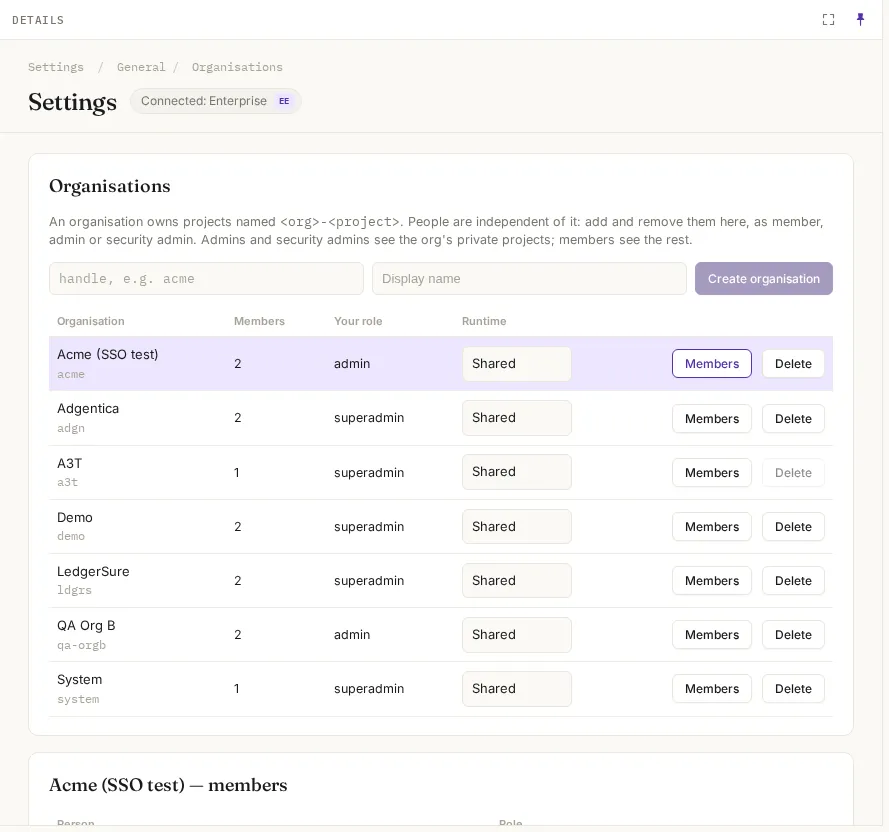
An organisation can sign its people in with its own identity provider: Entra ID, Okta, Google, its own Keycloak. A3T’s Keycloak brokers it. People who sign in that way land in that organisation only, with the role their groups give them, checked at every sign-in.
| Field | What it means | Example |
|---|---|---|
| Identity provider | The name its provider is connected to A3T’s Keycloak under | acme |
| Email domains | People who start single sign-on with a work email at one of these domains go to this organisation’s provider | acme.com |
| Groups → role | Which group in their provider gives which role here | a3t-admins → admin |
| Anyone else | The role for people with none of those groups: member, or no access | member |
Save sign-in applies it from the next sign-in. On the sign-in page, people choose single sign-on and enter their work email (or the organisation’s name); A3T sends them to their organisation’s provider and back.
The other sections
Section titled “The other sections”| Section | What it sets |
|---|---|
| Platform | The platform’s name |
| Runtime, Clusters | Where A3T runs work |
| Appearance | The console’s look |
| Authentication, Users, Roles, Identity Providers | Sign-in, its users and how their roles map to A3T roles (Enterprise) |
| Authorization, Policy Engine | How decisions are made: the policy engine and its mode (Enterprise). Policies themselves are in Security |
| Audit Log, Monitoring, Compliance | Records and checks (Enterprise) |
| Storage & Data, Storage Backend, Platform Database | Where A3T keeps its own data (Enterprise) |
| ADB Embeddings | The embedding model ADB uses to recall by meaning. A different model re-embeds every memory (Enterprise) |
| ADB Memory Cache | Which memory ADB keeps hot, per memory type (Enterprise) |
| Logs & Retention, Image Registry, Notifications, Webhooks | Operations |
| Plan & Usage, Payment Methods, Invoices | Billing (Enterprise) |
| API Keys, Feature Flags, Telemetry | Developer settings |
Your profile
Section titled “Your profile”The menu under your name in the top bar has your Profile: your handle, your organisations and your roles. A SuperAdmin also has Act as: see the console exactly as a given person or role sees it. The session is short and can’t be extended; an amber Acting as … Stop pill shows it, and every decision made during it records the SuperAdmin who acted.