Get access and sign in
The A3T console is at dash.a3t.io. It is where you build agents and flows, connect resources, set policies and watch runs. During the private beta, accounts are by invitation: you request early access, an A3T admin makes your account, and you sign in.
- Request early access on the sign-in page.
- Get your account: an admin reads your request and makes it.
- Sign in with your email and password, or with your organisation’s single sign-on.
- Find your way around, then follow the Quick start.
1. Request early access
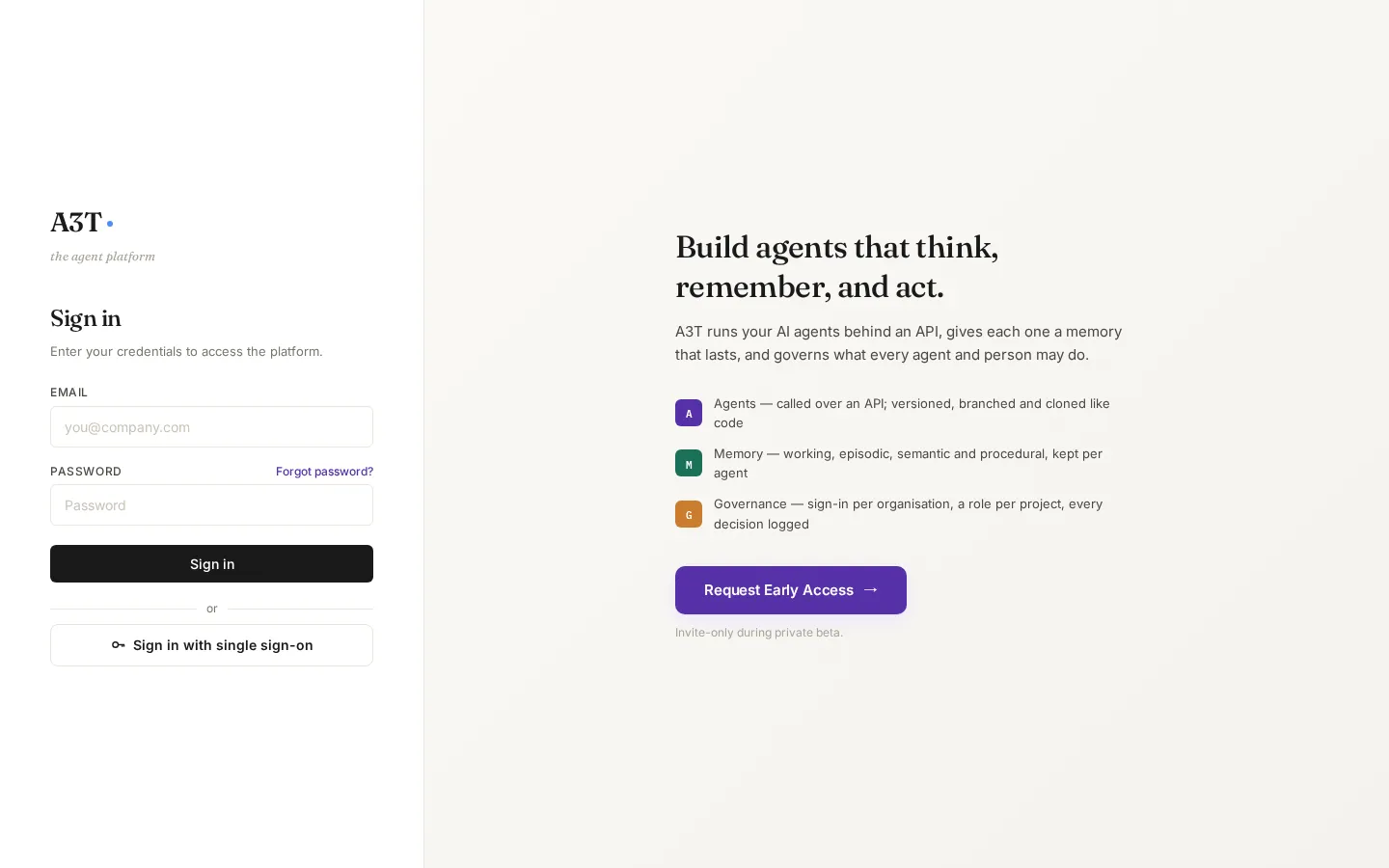
Section titled “1. Request early access”Open dash.a3t.io. You land on the sign-in page; on the right is Request Early Access. On a phone the button is under the sign-in form.
Request Early Access opens a short form. Fill it in by hand, or choose Continue with LinkedIn to fill in your name and email from your LinkedIn profile.
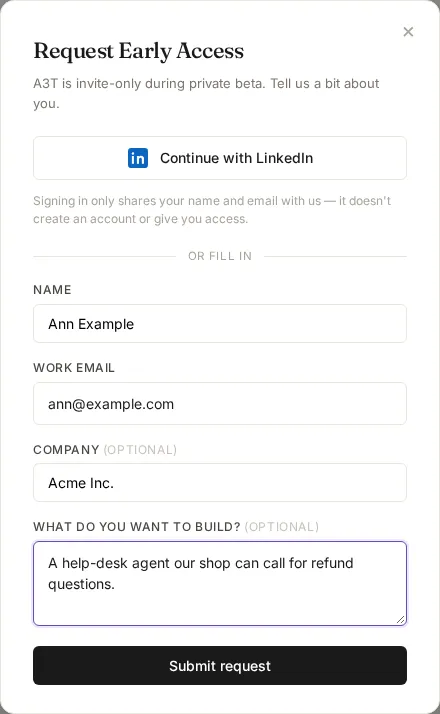
| Field | What it is for | What to put | Example |
|---|---|---|---|
| Continue with LinkedIn | Fills in your name and a verified email from LinkedIn. It only shares those two; it does not create an account or sign you in | Use it, or fill in the fields below instead | — |
| Name (required) | How we address you | Your full name | Ann Example |
| Work email (required) | Where we reach you, and the email you will sign in with | The address you want your account under | ann@example.com |
| Company (optional) | Who you build for | Your company or team | Acme Inc. |
| What do you want to build? (optional) | Helps us set up the right access | A sentence about your use | A help-desk agent our shop can call for refund questions. |
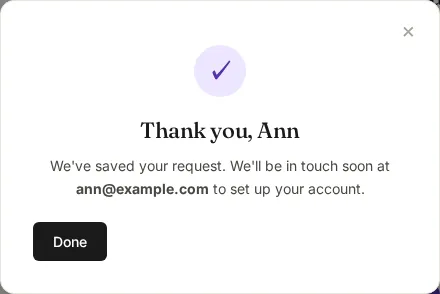
Submit request saves it and thanks you. Nothing else happens yet: no account exists and no email is sent. We reply at the email you gave.
2. Get your account
Section titled “2. Get your account”This step is done by an A3T admin, not by you. It is here so you know what to expect, and so admins know what to do.
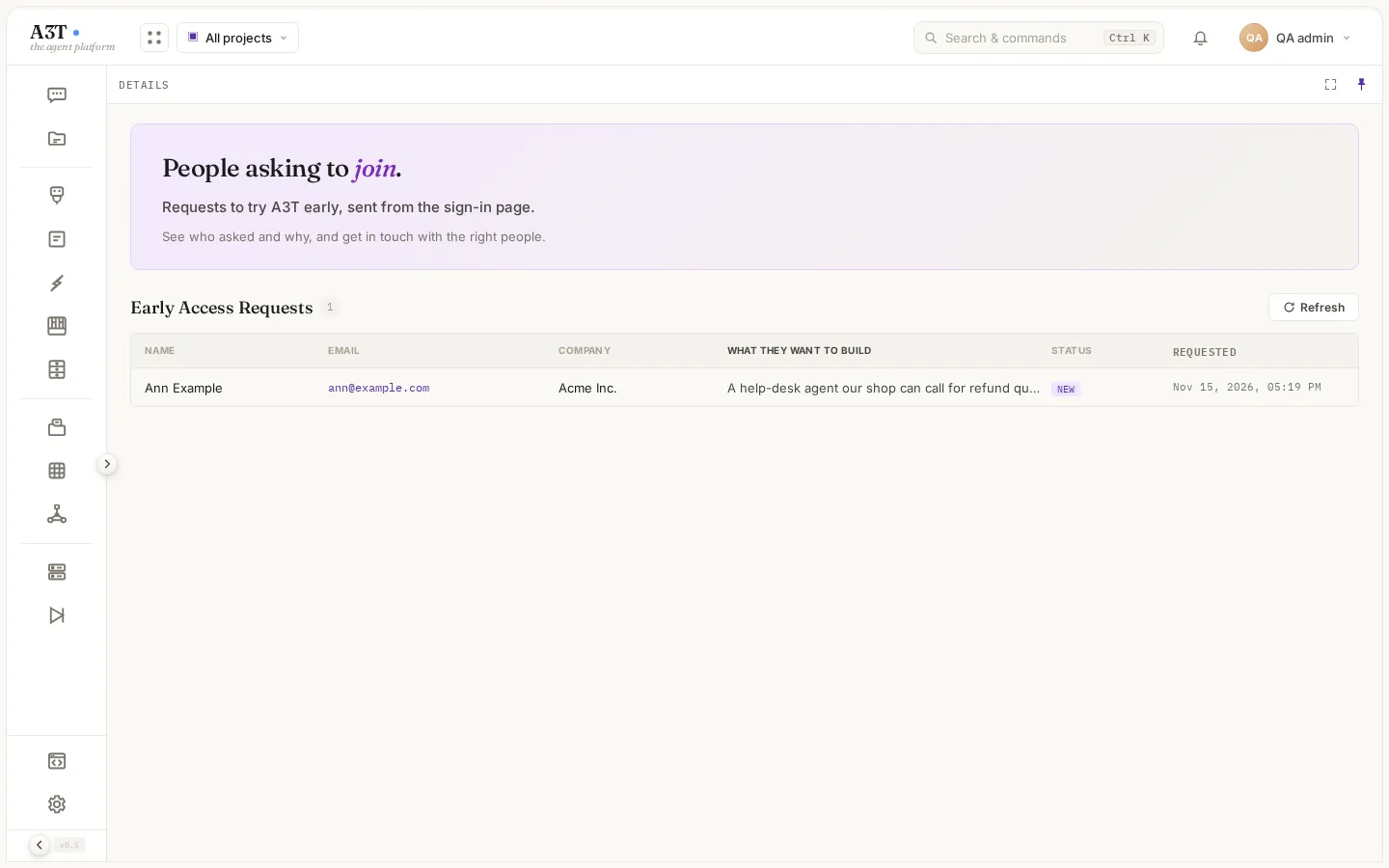
Reading requests. An Admin or SuperAdmin opens dash.a3t.io/early-access: every request, newest first, with name, email, company, what they want to build, status and when they asked.
Making the account. A SuperAdmin or SecurityAdmin opens Security › Identity › Users › Manage › + User:
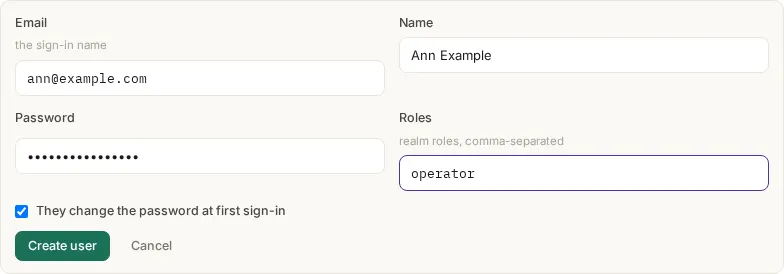
| Field | What it means | What to put | Example |
|---|---|---|---|
| The sign-in name. Can’t be changed later | The email from the request | ann@example.com | |
| Name | Shown in the top bar, in members lists and in logs | Their full name | Ann Example |
| Password | Their first password. With the box below ticked it is temporary: it works once, to choose their own | At least 8 characters. Send it separately from the email | — |
| Roles | What they may do, everywhere in A3T. Comma-separated; the highest one counts | operator for someone who builds; viewer to read only | operator |
| They change the password at first sign-in | The first password is temporary: at their first sign-in, the console asks them to choose their own before going in | Leave it ticked, so only they know their password | on |
| Role | What they may do |
|---|---|
viewer | Read everything they can see; create nothing |
operator | Build in their own projects and the projects they are members of. Most people start here |
admin | Run projects, and read early-access requests; no Security or Decision log |
securityadmin | Security and the Decision log: policies, identity, every decision |
superadmin | Everything, in every organisation |
Create user makes the account. Tell the person their email and first password, and send them to dash.a3t.io.
3. Sign in
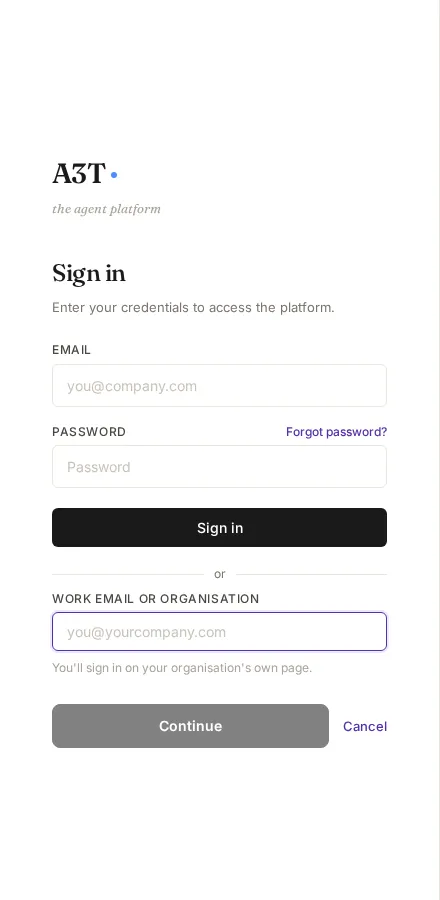
Section titled “3. Sign in”Open dash.a3t.io and sign in one of three ways.
Email and password. Type the Email your account was made with and your Password, then Sign in.
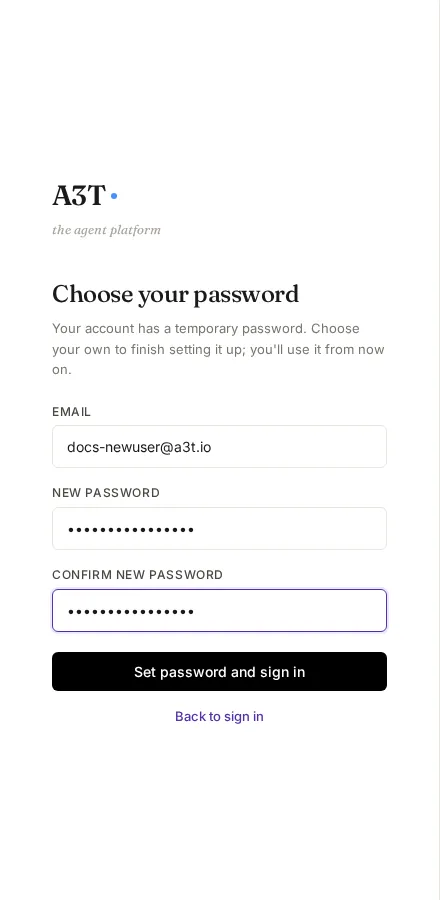
The first time, if your admin gave you a temporary password, the console asks you to Choose your password: type a New password (at least 8 characters, not the temporary one) and Confirm new password, then Set password and sign in. From then on, sign in with your new password; the temporary one no longer works.
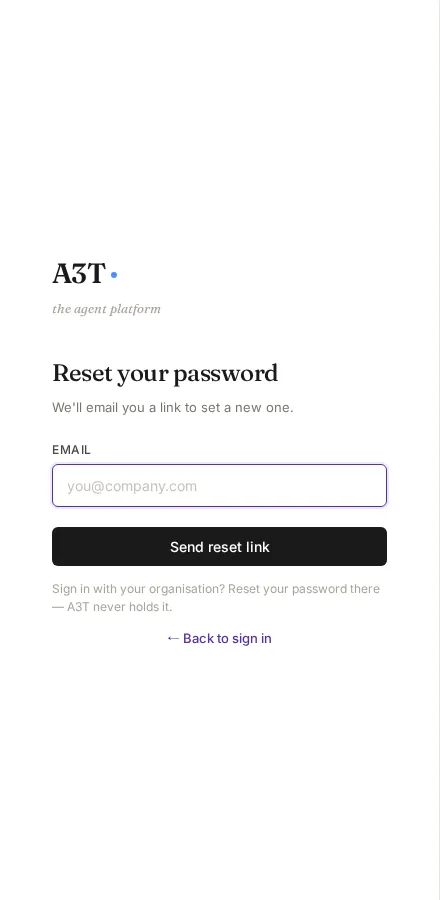
Forgot password? Above the password field. Enter your email and we send you a link to set a new password; it works for 30 minutes. The answer is the same whether or not the email has an account, and it is not sent to people who sign in with single sign-on: their password is set by their organisation.
Sign in with single sign-on. For organisations that sign their people in with their own provider (set up in Settings). Type your work email (e.g. you@yourcompany.com) or the organisation’s name, then Continue: you sign in on your organisation’s own page and come back signed in. If no organisation uses single sign-on for that email or name, the form says so.
4. After you sign in
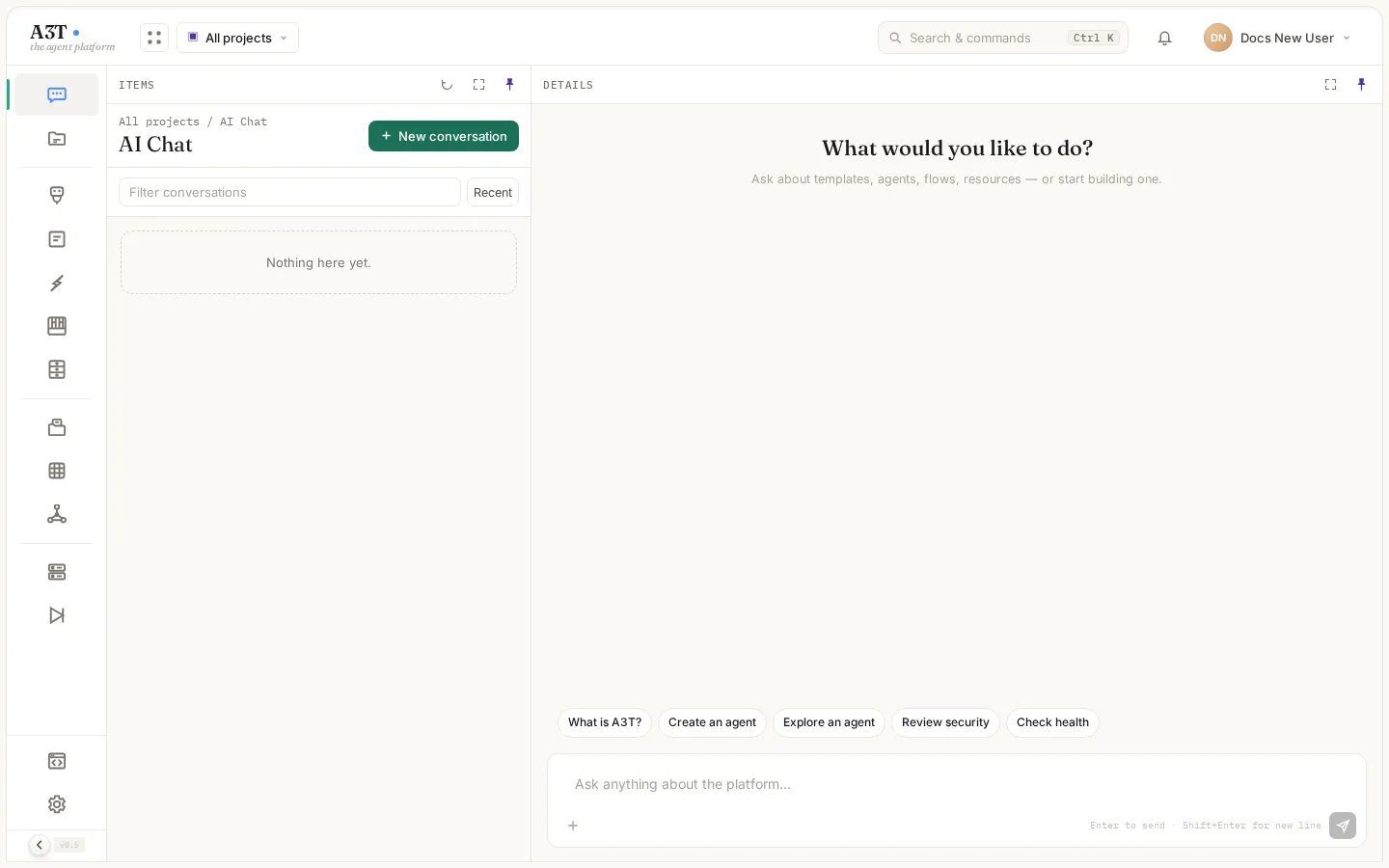
Section titled “4. After you sign in”You land in AI Chat, the console’s assistant. Everything else is in the menu on the left and the bar at the top.
| Where | What it is |
|---|---|
| Menu (left) | The apps, in groups: Home (AI Chat, Projects), Agents (Agents, Templates, Triggers, Canvas, Resources), Knowledge & data (Files, Memory, Knowledge), Security & audit, Runtimes & runs, and Studio and Settings at the bottom. What you see depends on your role |
| Project picker (top bar, All projects) | Shows only one project’s work in every app. All projects shows everything you may see |
Search & commands (Ctrl K) | Jump to any app, project or item by name |
| Your name (top right) | Your profile, and Sign out |
| Items and Details | Each app lists its items in the middle; the one you open shows on the right |
Next: the Quick start makes your first project and agent, step by step.